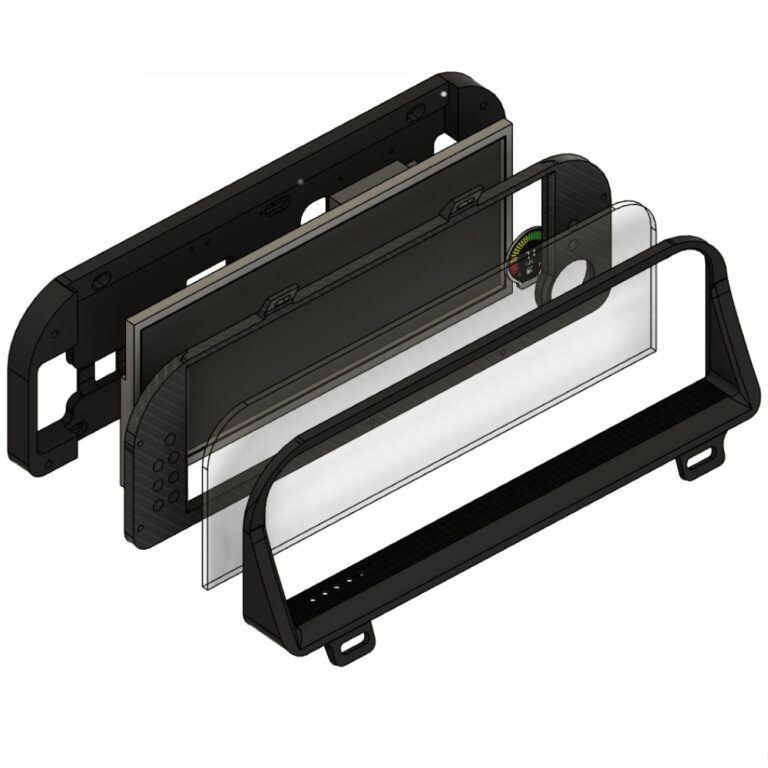
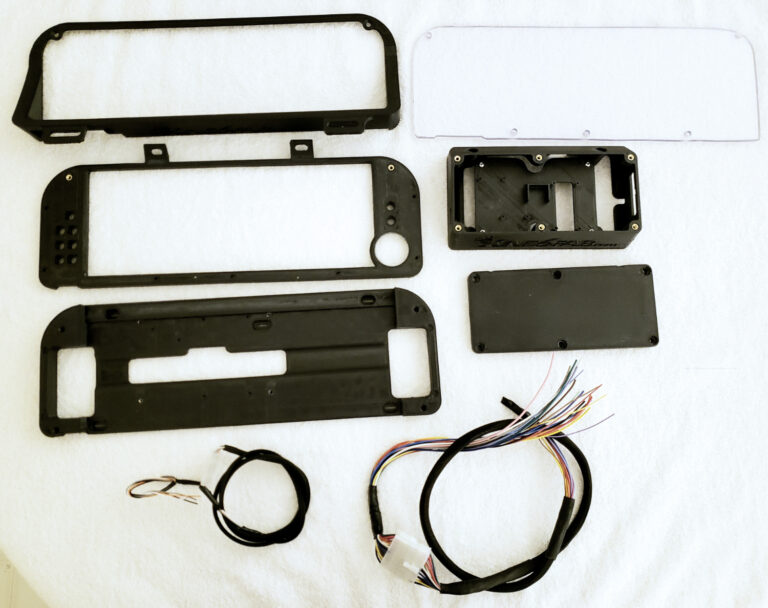

Outer Trim Bezel
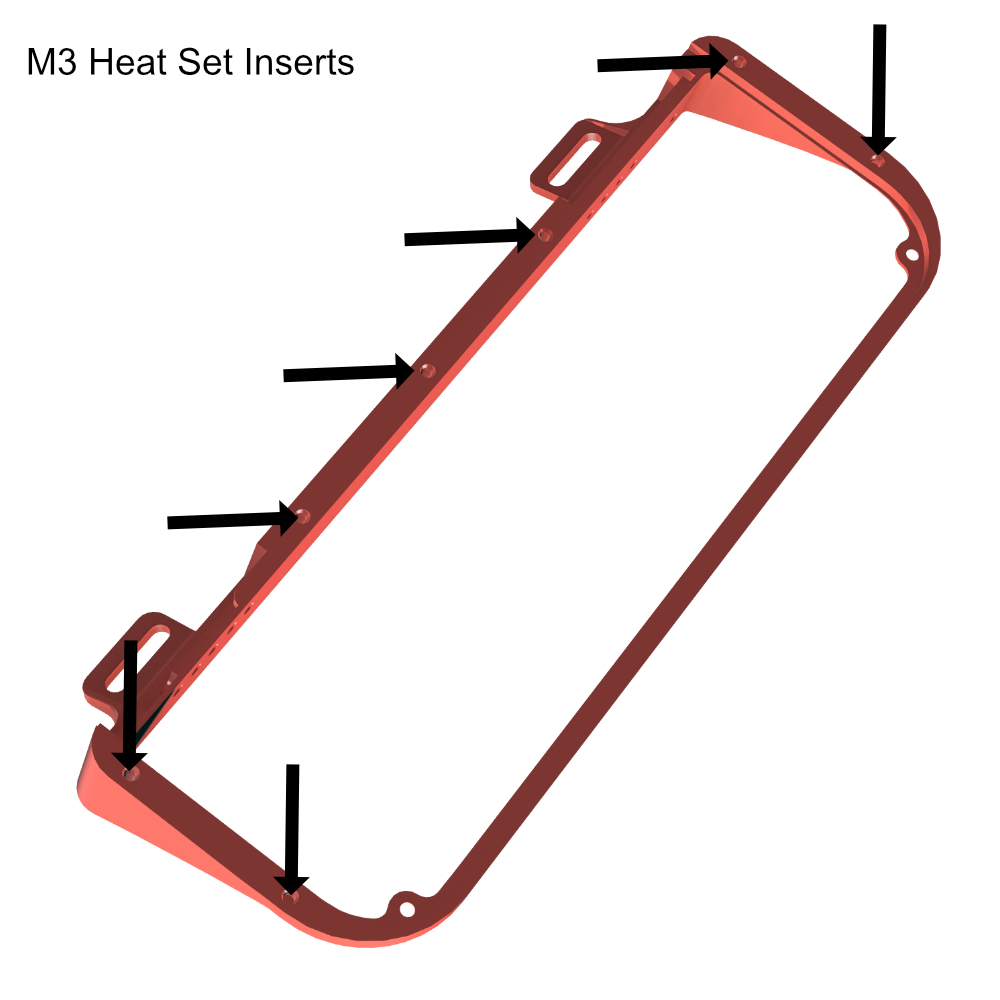
Step 1. Assemble the outer bezel with heat set inserts. You will be using M3 Inserts for this process. Use the below picture to reference where the inserts will be placed on the back side of the bezel.
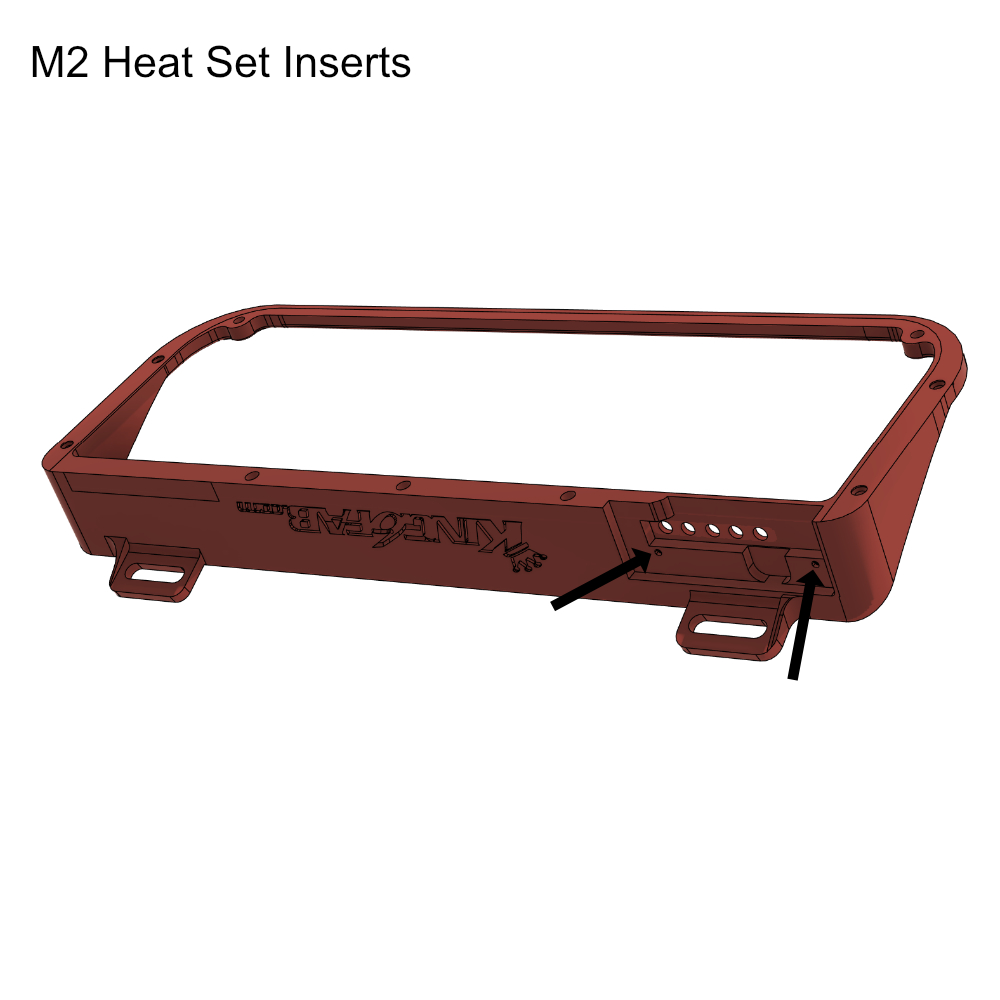
Step 2. You will be using M2 inserts for this process, push inserts into the locations identified by the arrows in the picture below. These insures will be used to hold the screen push button keypad. Additionally, this location is very tight and can be difficult to get the keypad to line up if the print quality is poor, so hot glue may be used to hold the keypad instead of M2 screws.
Inner Screen Bezel
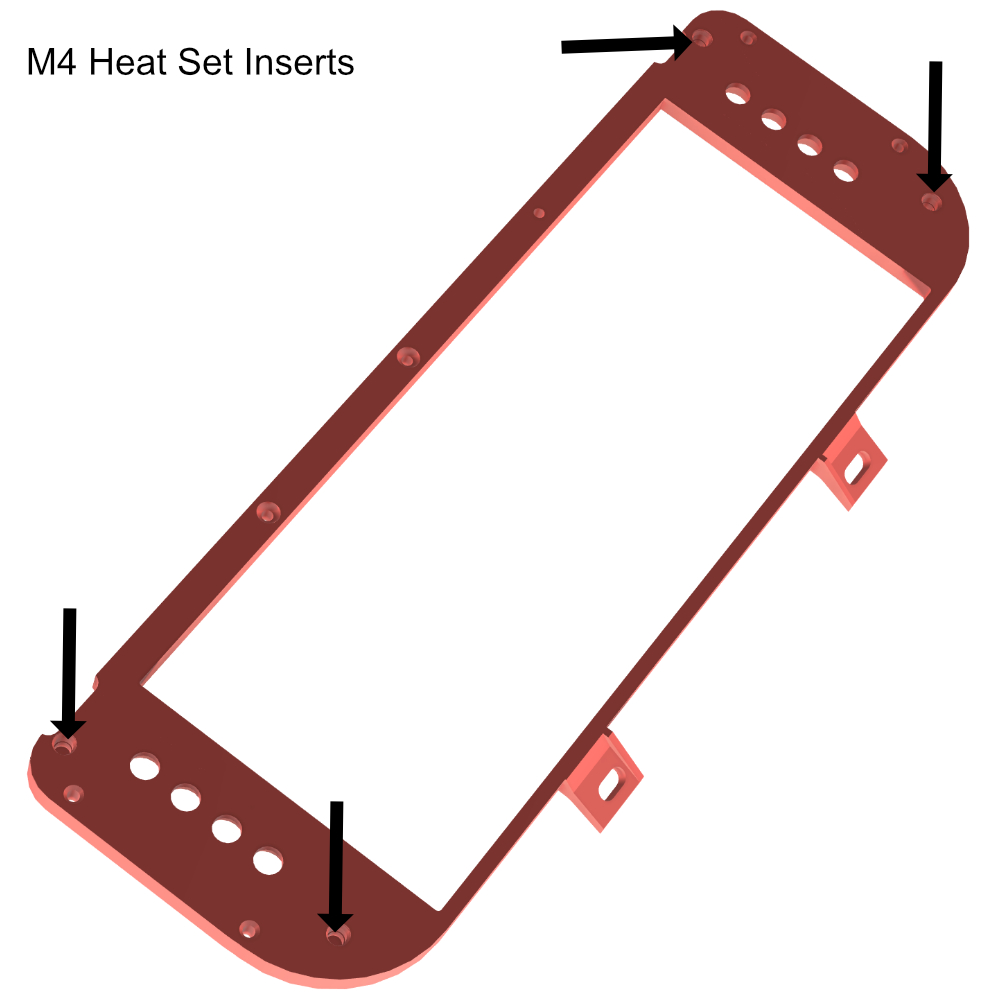
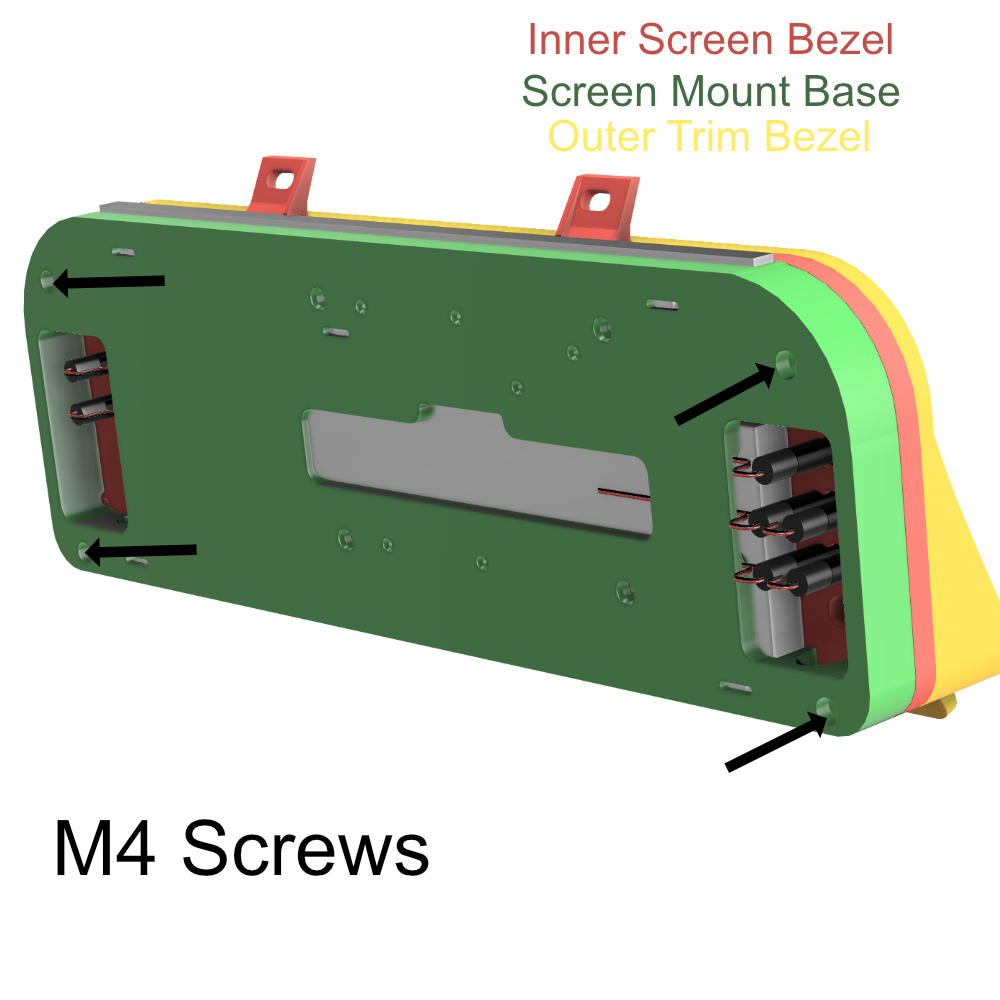
Step 1. You will be using M4 inserts and placing them in the locations shown in the picture below on the back side of the bezel. These locations are used to attach the base plate to the inner bezel assembly.
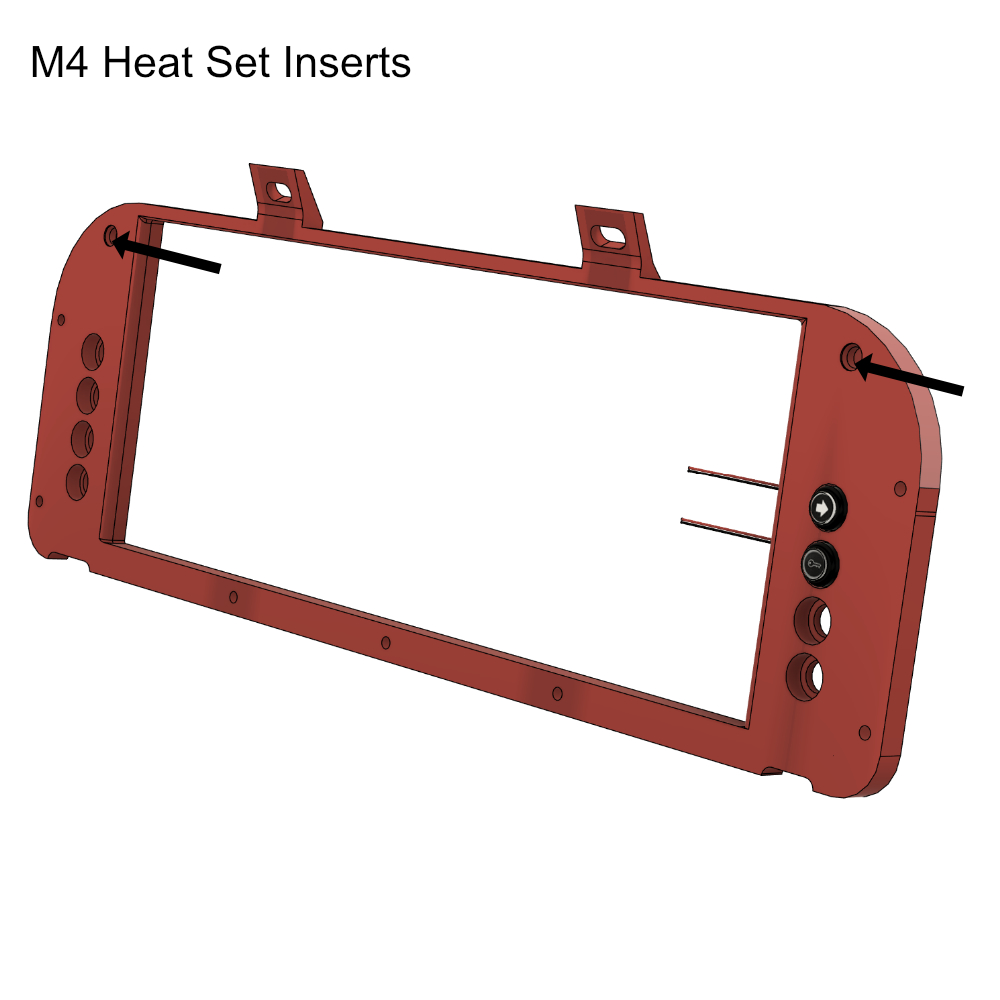
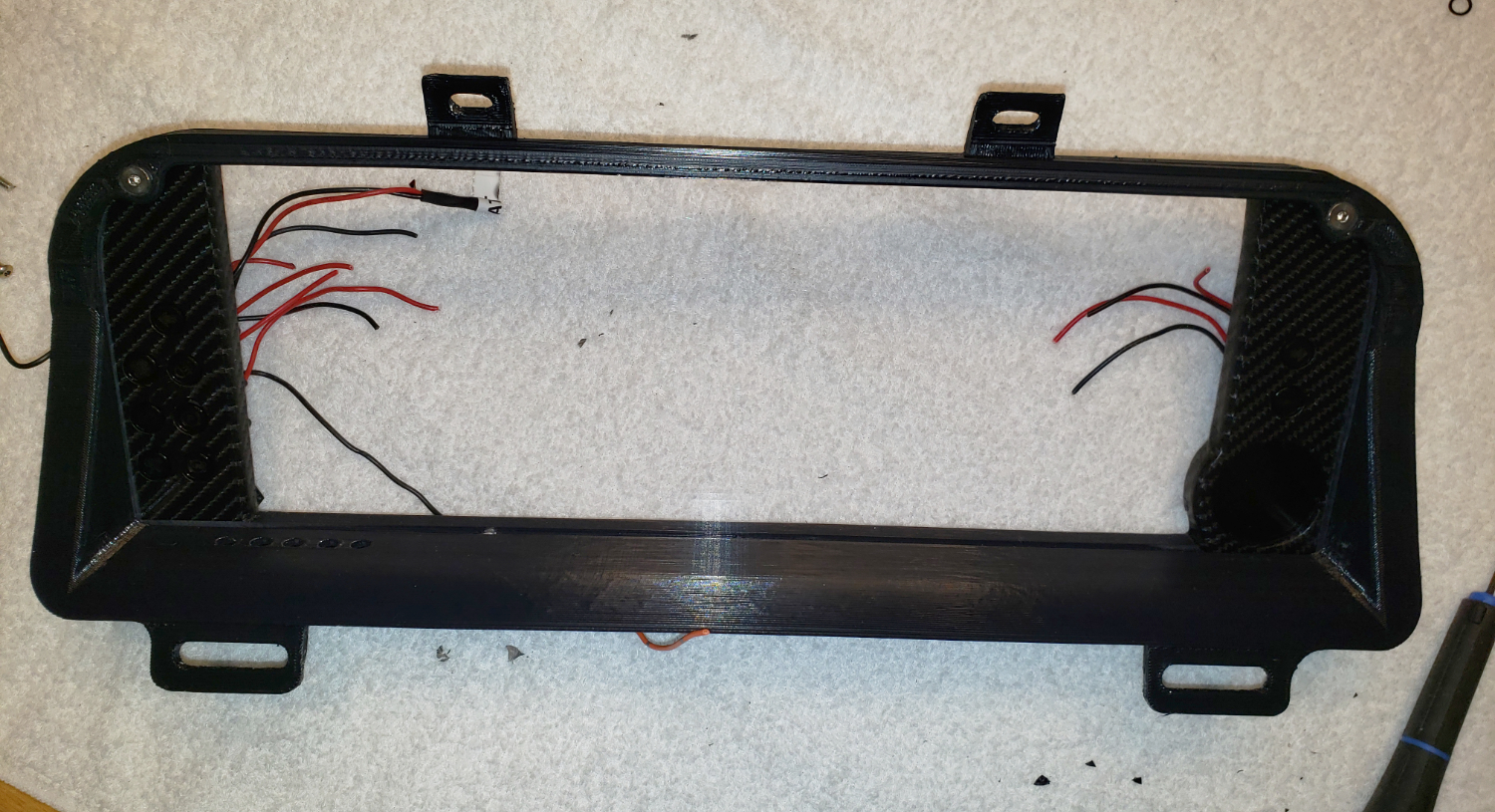
Step 2. You will again be using M4 inserts and placing them in the front side of the bezel in the locations shown in the picture. These locations are used to hold the outer bezel to the inner bezel. At this same time if you are using external indicators and/or fuel gauge bezel option than this when you will begin securing them into the bezel with pigtail wiring coming out the back as shown.
Screen Mount Base Plate
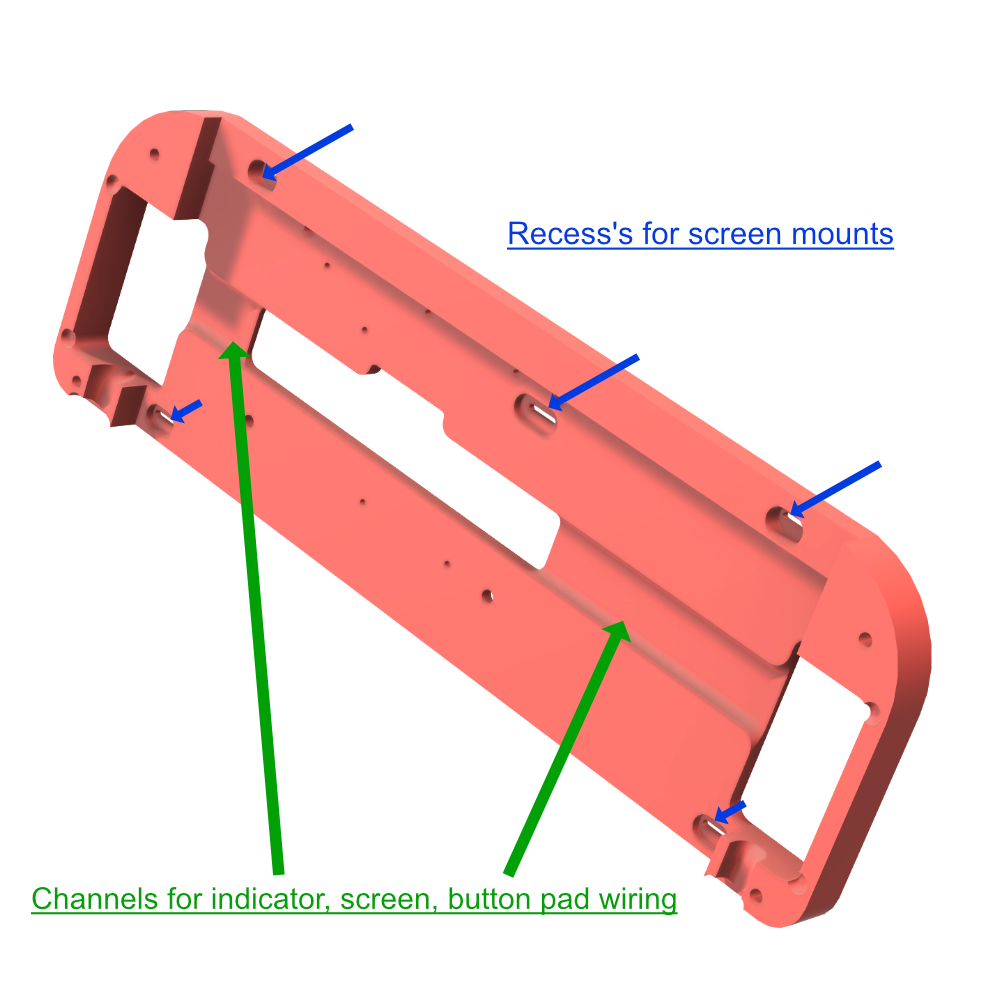
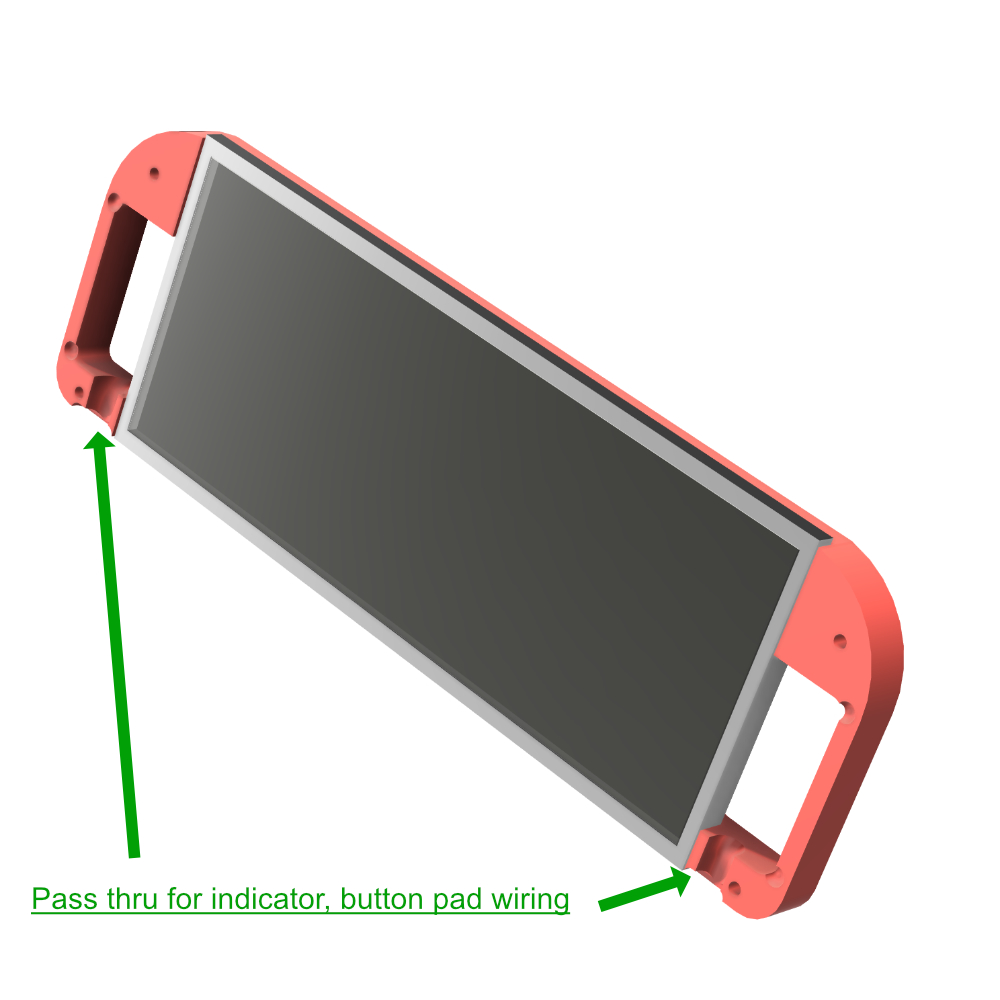
Step 1. Introduction, the base plate is designed to hold the screen in place. It features recesses on the front side for the studs of the screen to sit into. These locations are slotted to make securing the screen easier. Behind the screen is a channel and opening for screen wiring, indicator wiring options to pass thru to the back side of the base plate.
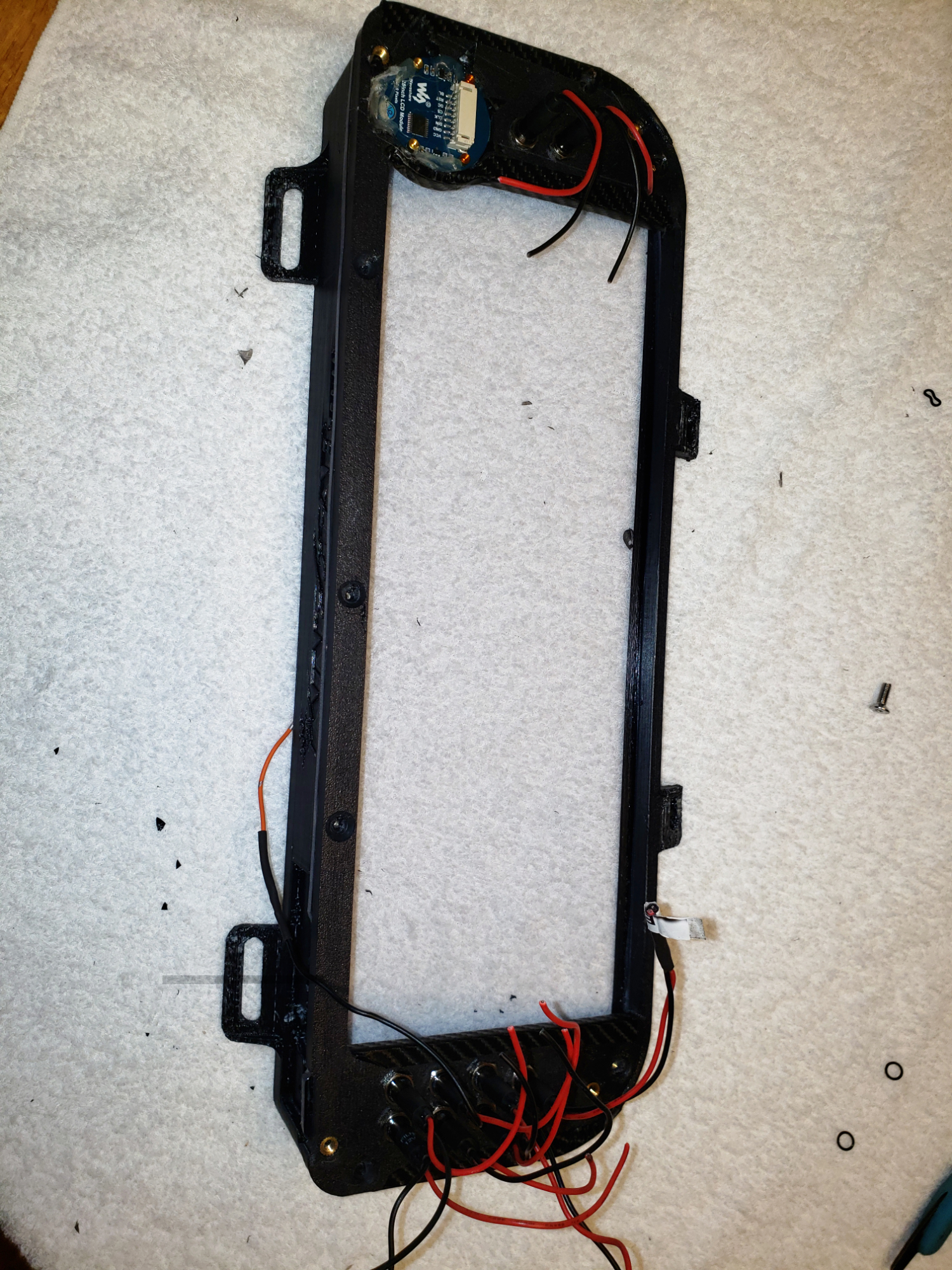
The base plate also features channels for the screen push button keypad, options keypad and/or fuel gauge option.
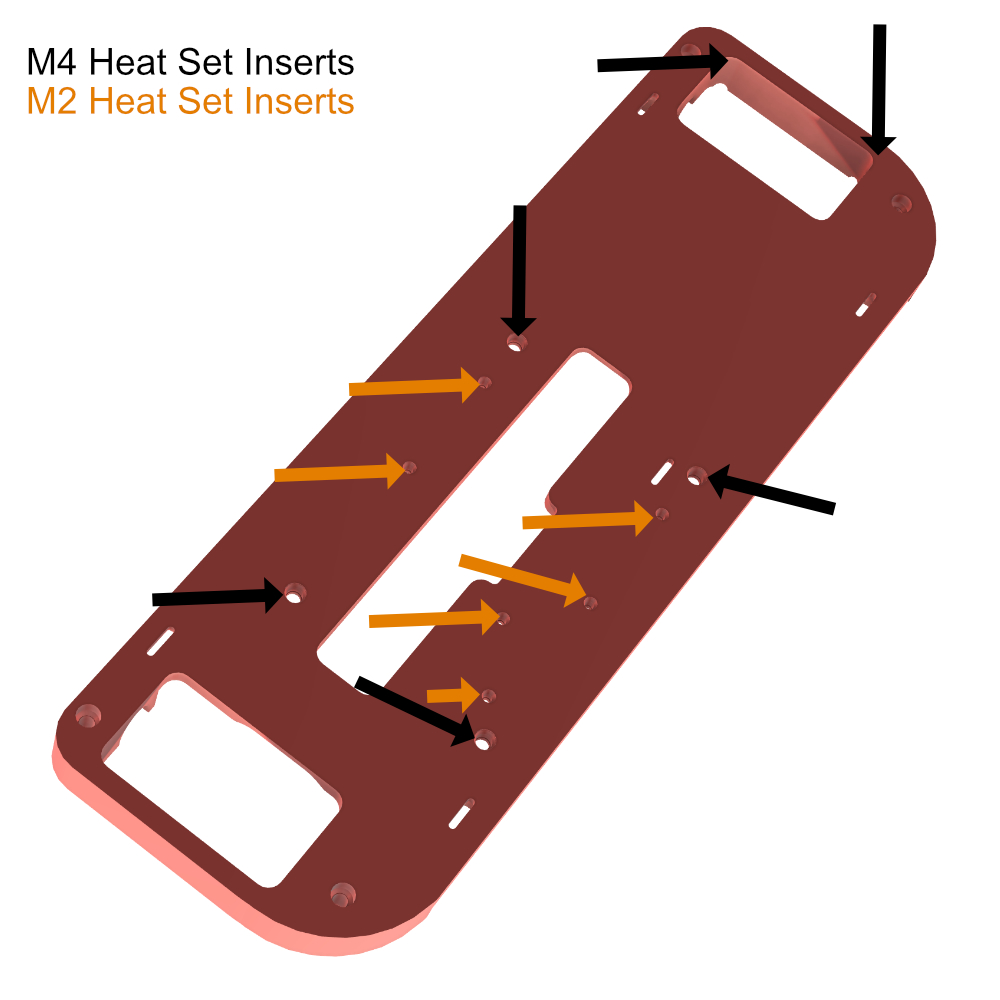
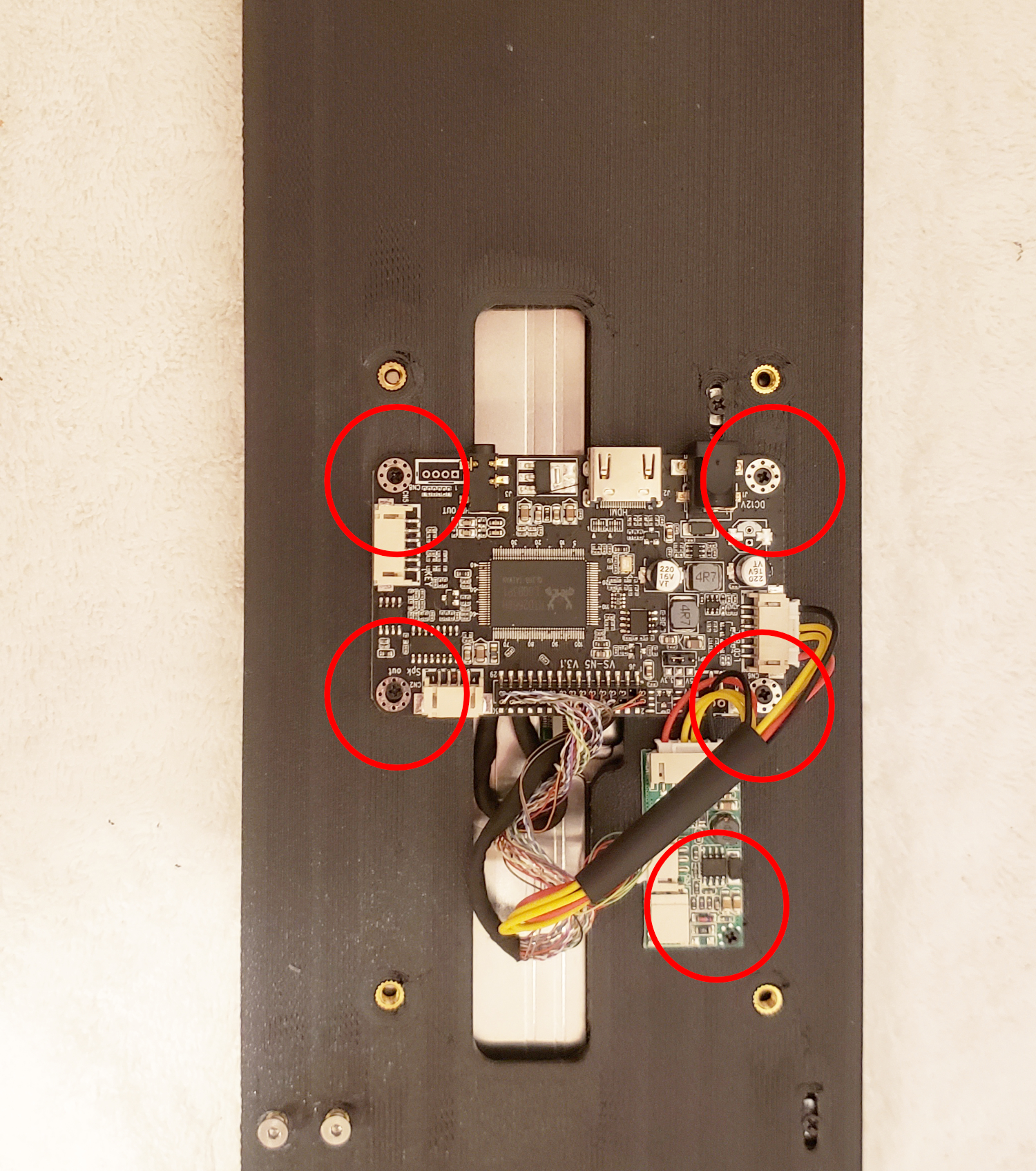
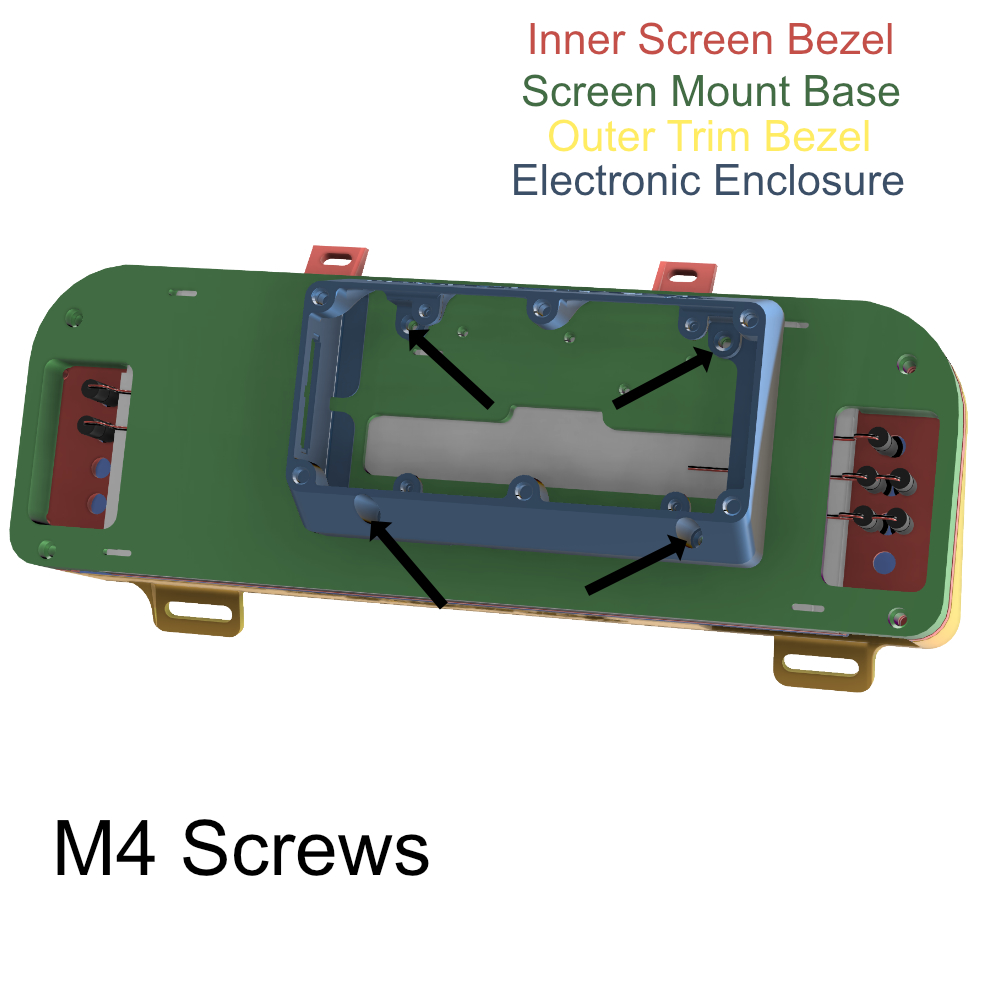
Step 2. You will be pushing in M4 and M2 in the following locations shown in the below picture designated by color. The M2 Locations are used to secure the Screen control board components and the M4 Locations are used to attach the electronic enclosure.
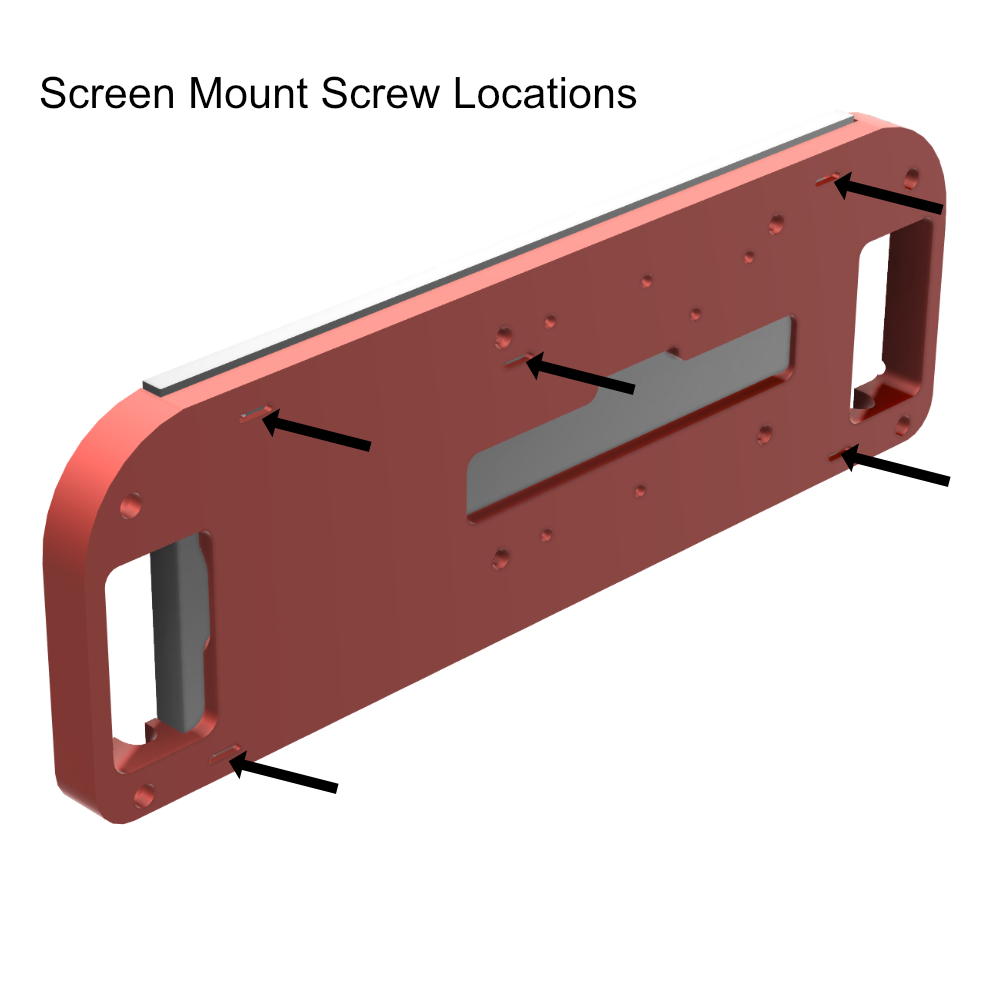
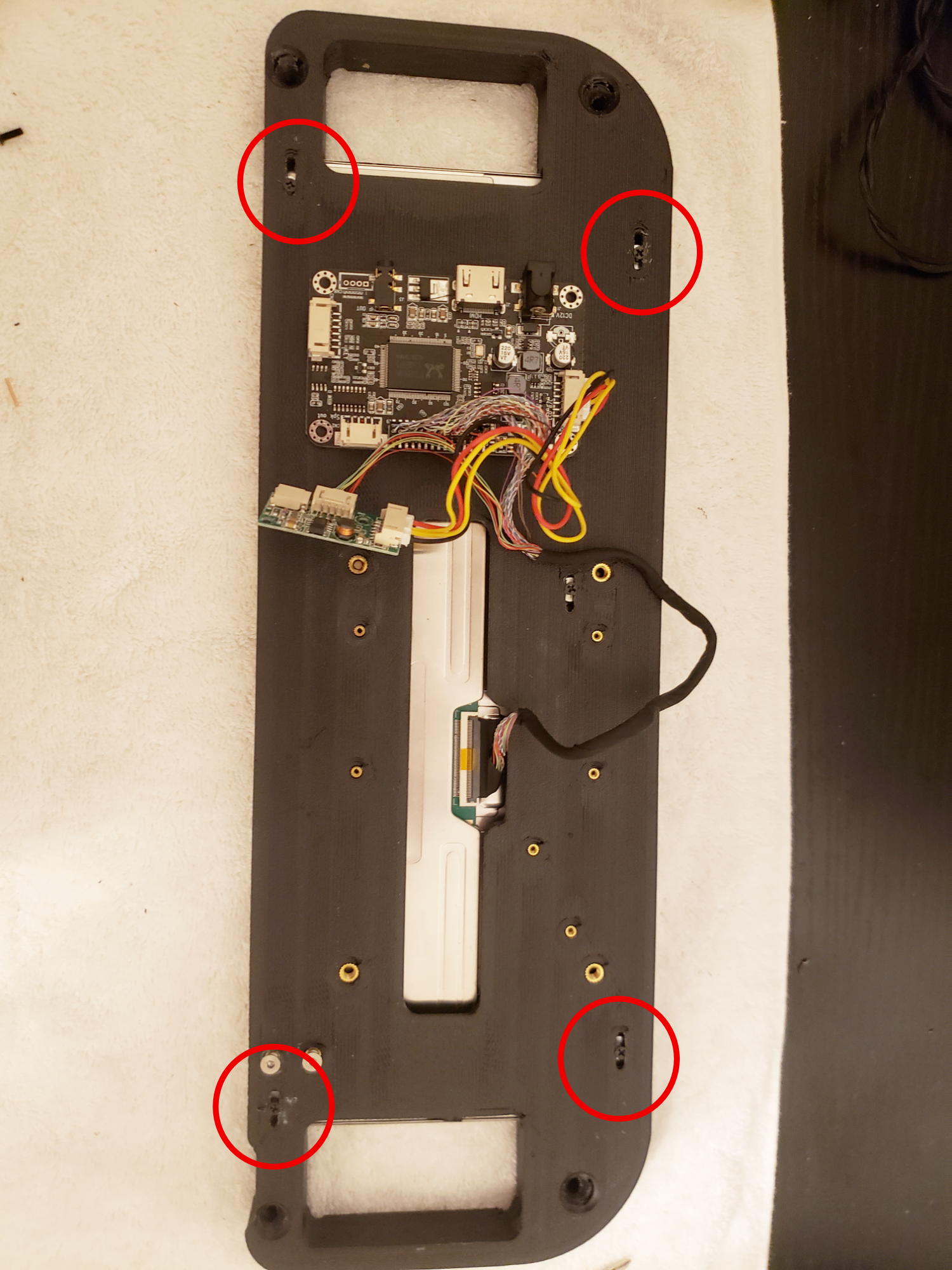
Step 3. Next Mount the screen by placing it in the base plate and securing in the following locations using M2 Screws.
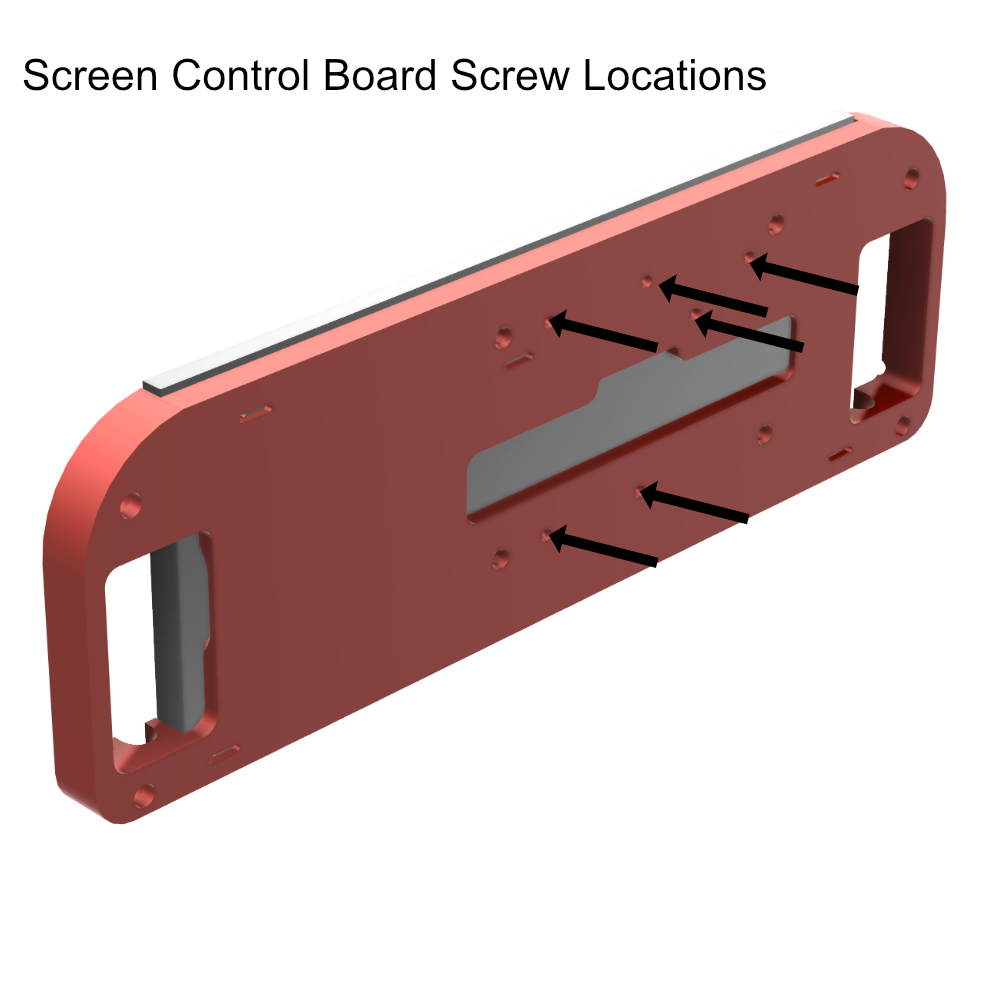
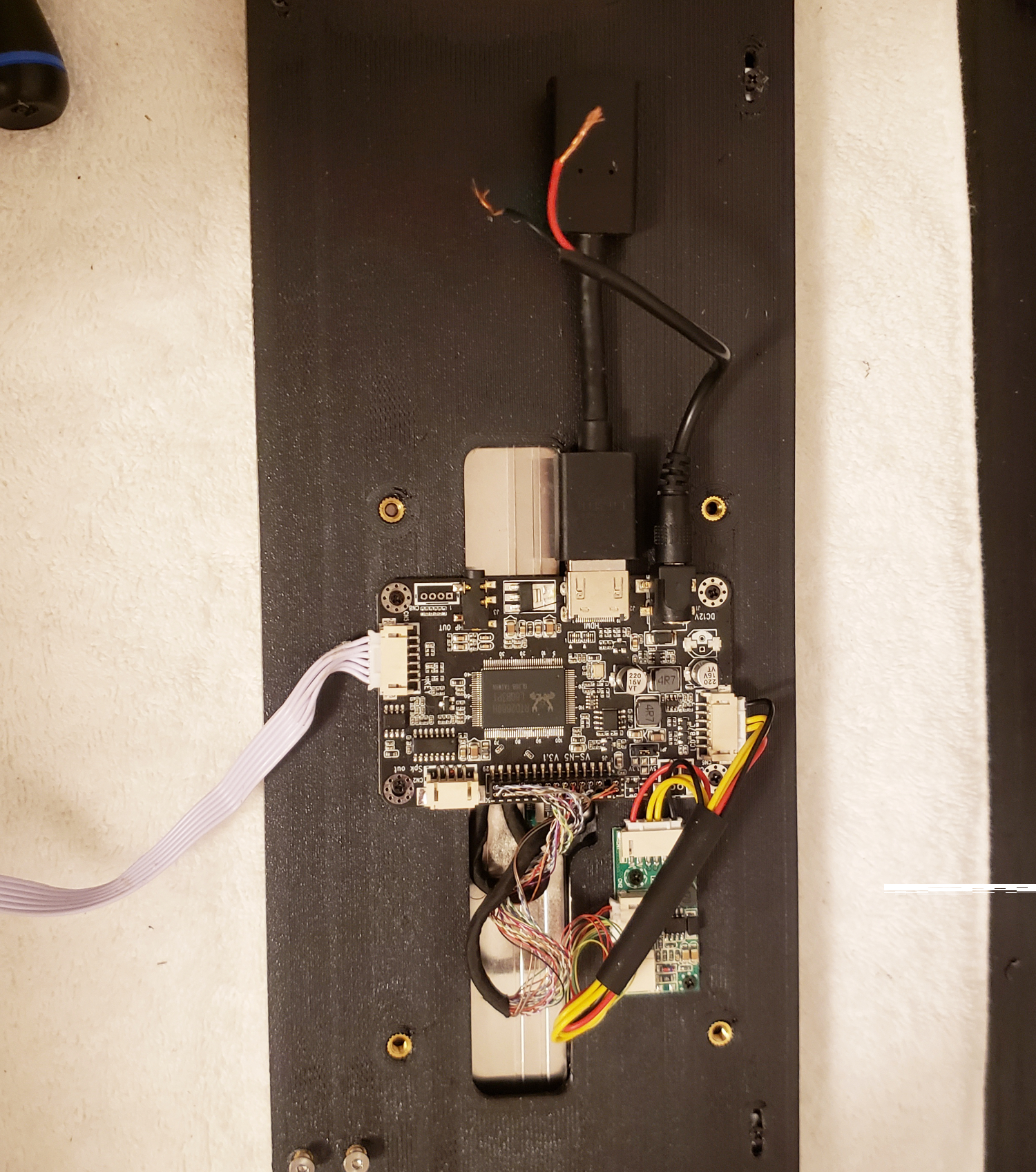
Step 4. Now secure the screen control board components to the following locations.
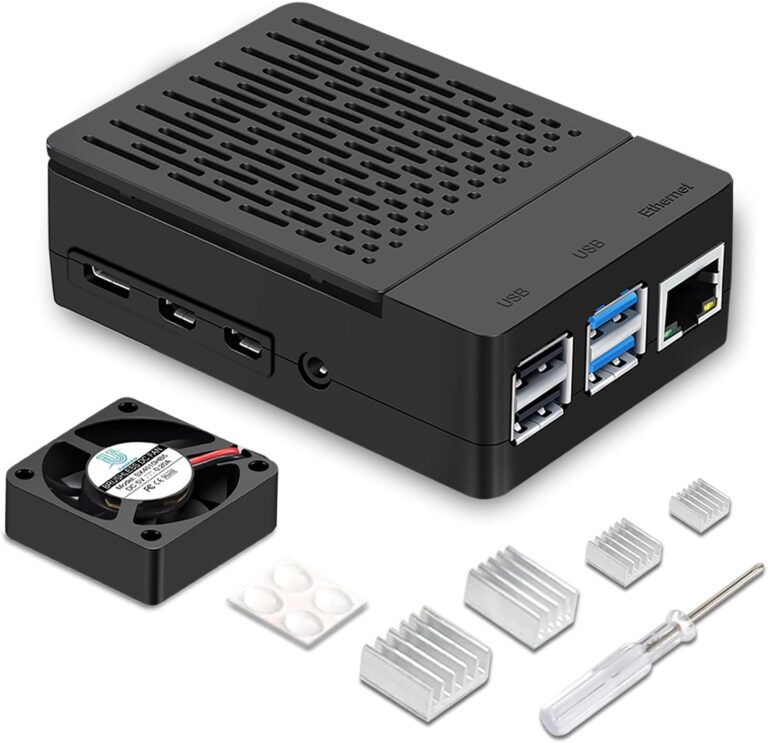
Electronic Enclosure
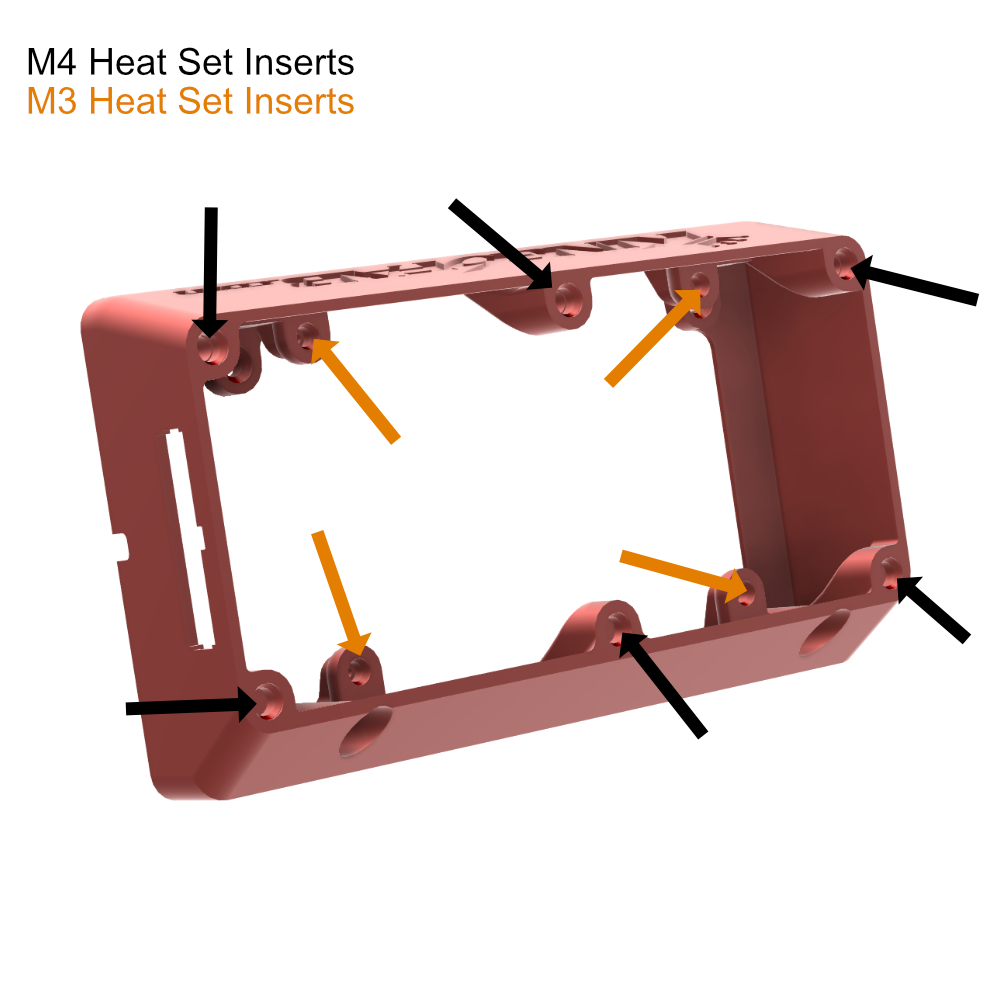
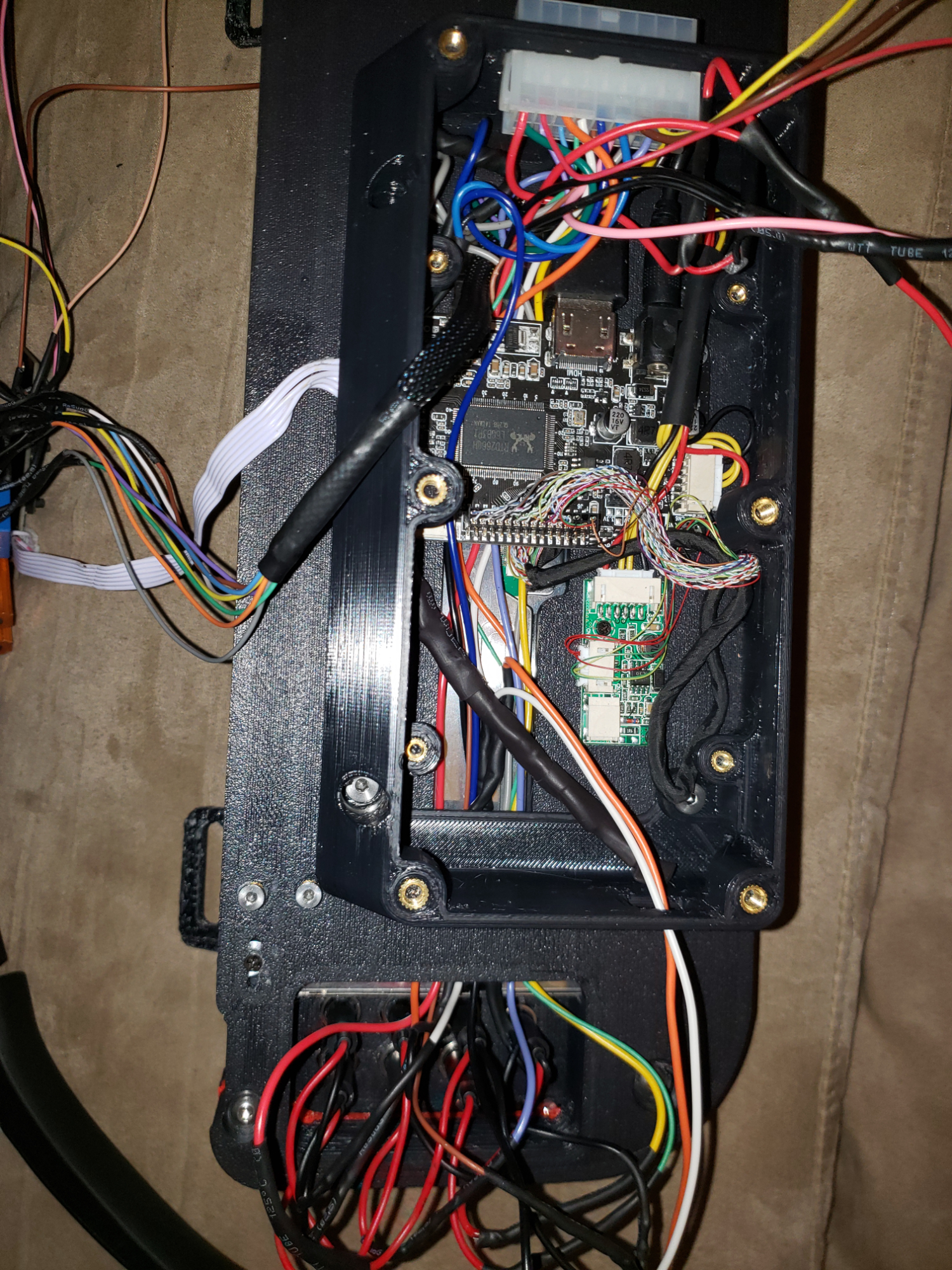
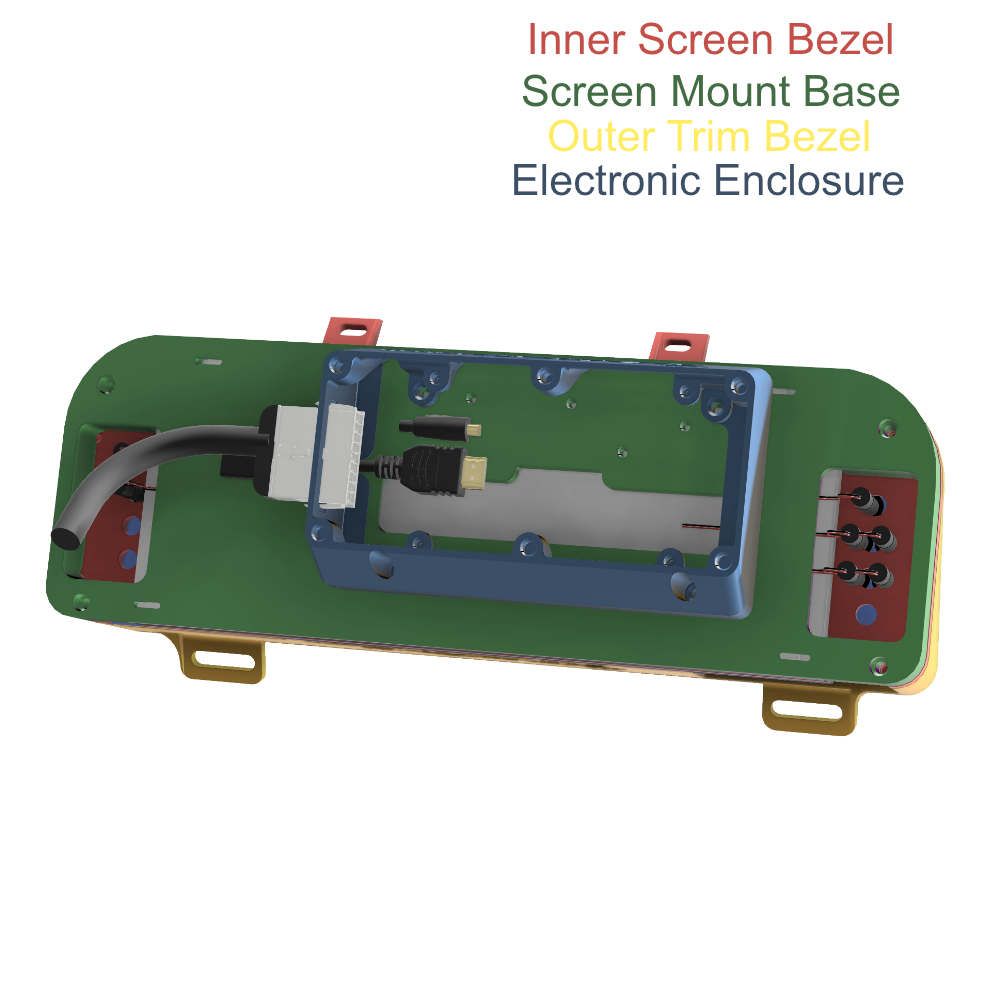
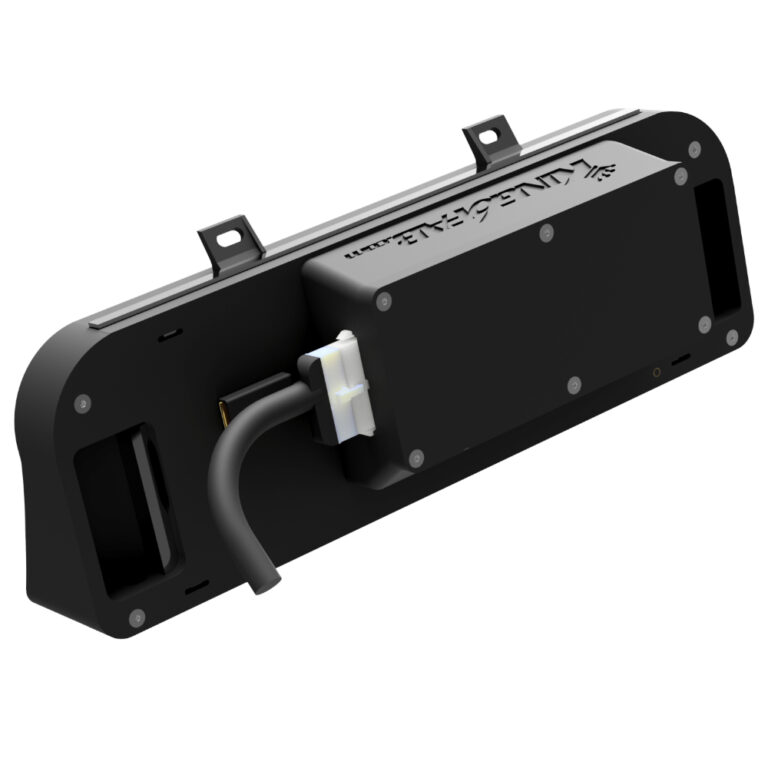
Step 1. Follow the below diagram inserting the heat set inserts designated by arrows and color type.
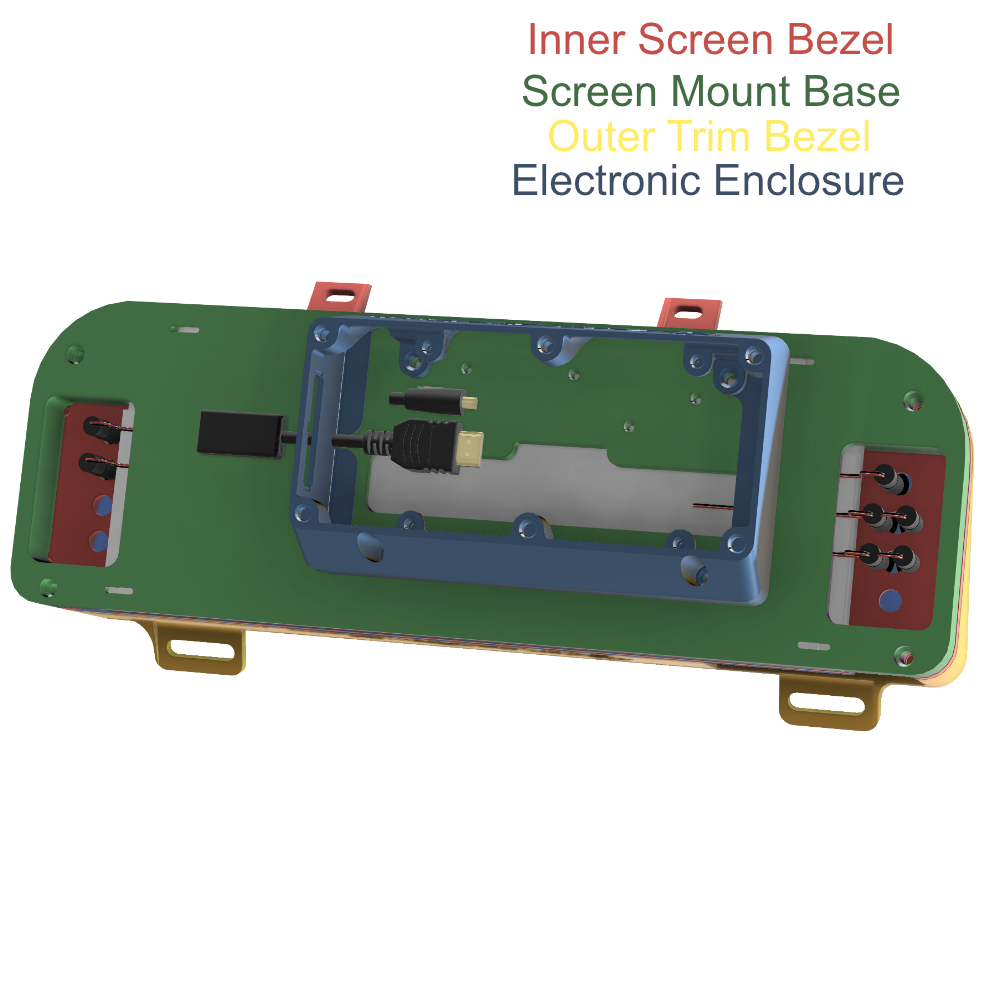
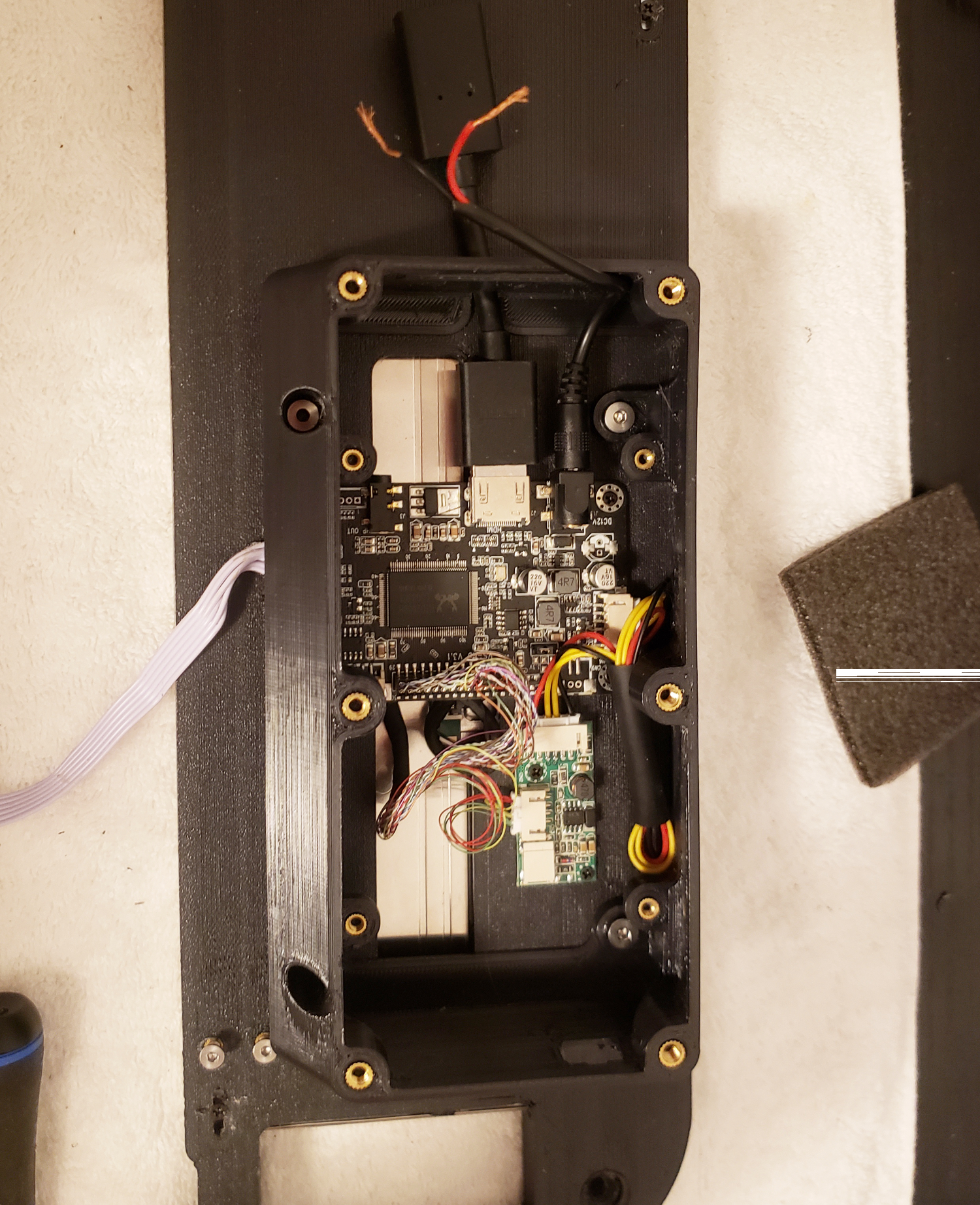
Step 2. Place the HDMI Cable Extender, Screen Push Button keyboard and screen power cable into position before mounting the electronic box to the base plate.
Step 3. Secure the electronic enclosure to the base plate allowing the previously installed cables to route under it.
Bezel Mounting
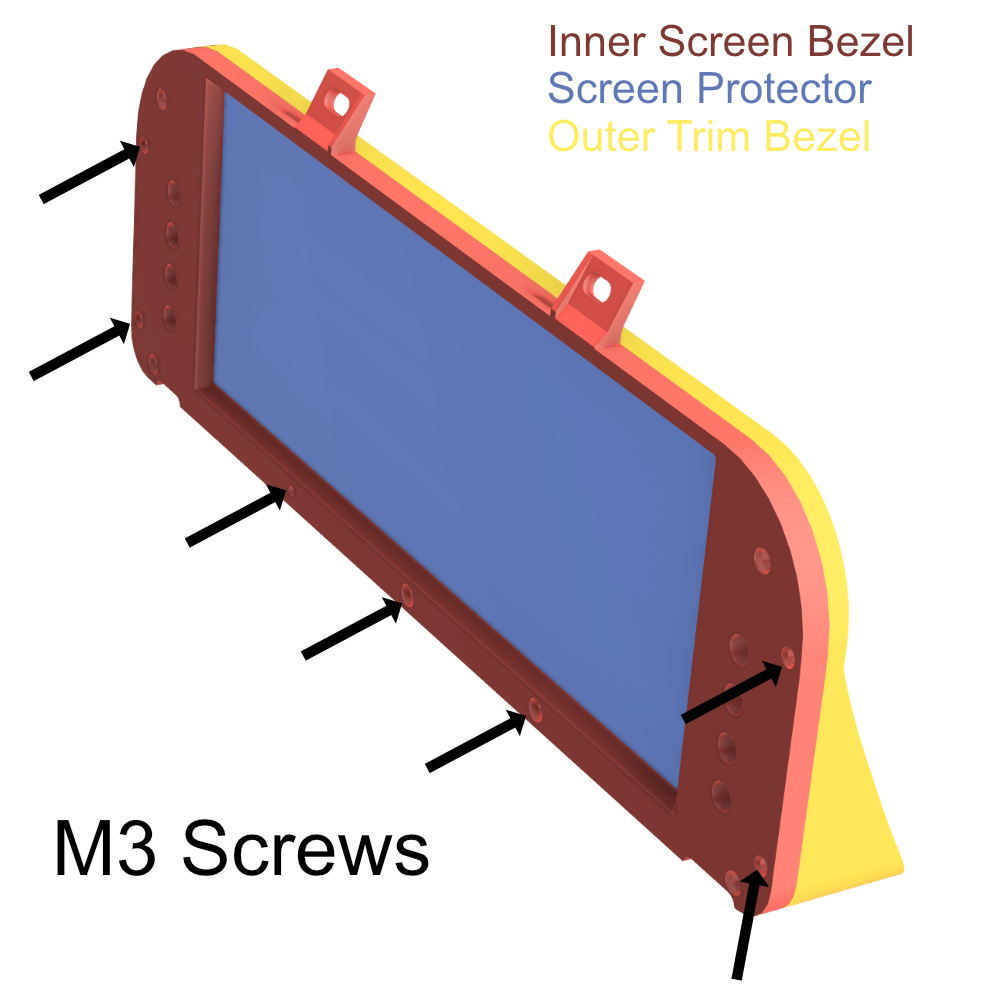
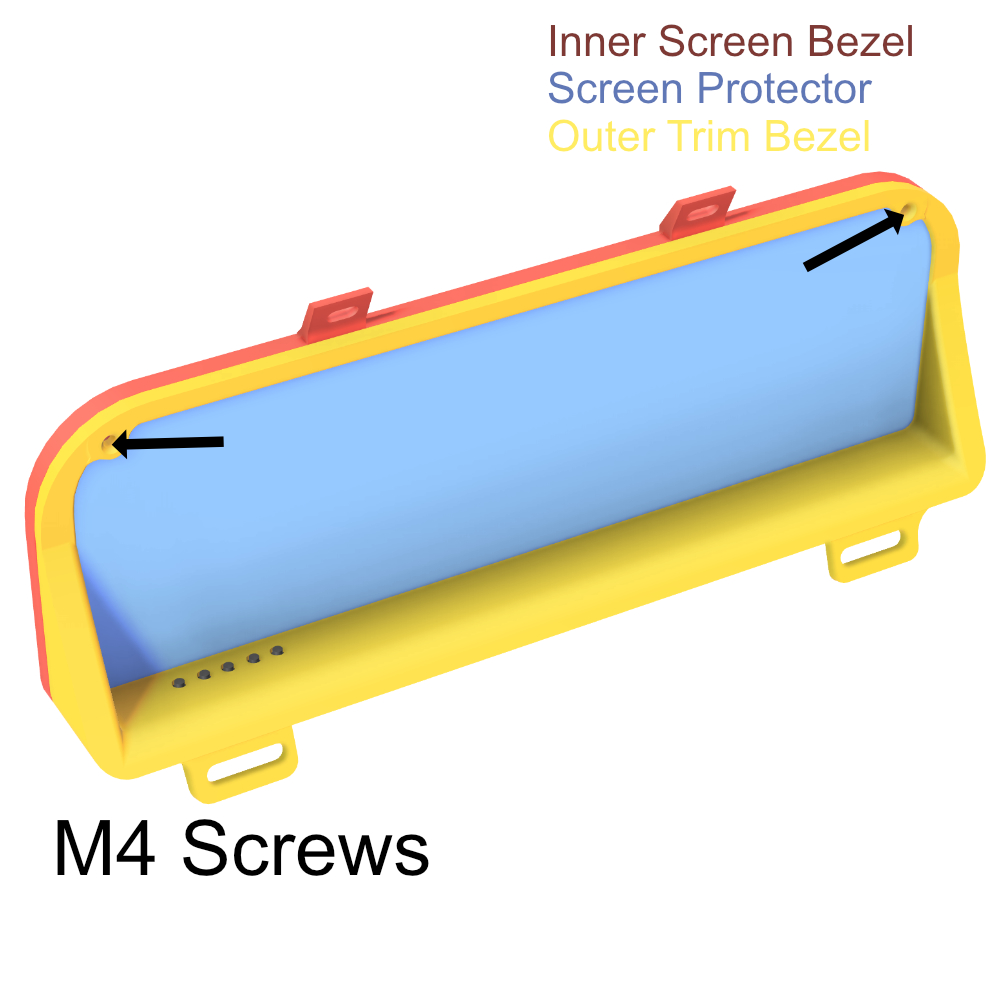
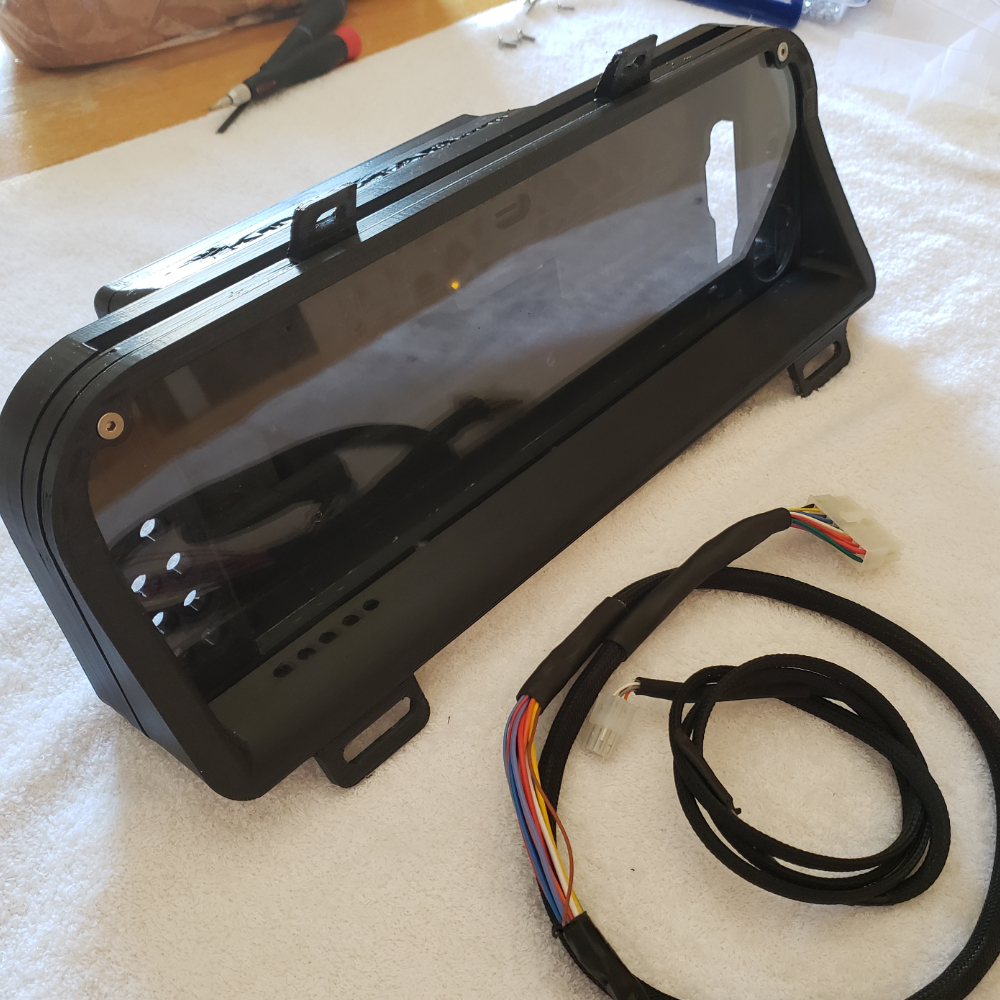
Step 1. Attach the inner bezel to the outer bezel by securing it thru the screw hole locations as shown i the picture below. If you are using a screen protector it will need to be sandwiched between both bezels in the location it fits into. If you are using indicators and/or fuel gauge then the wiring will be hanging out the backside as shown in below picture.
Step 2. Secure the front of the bezel to the inner bezel from the front side as shown in the below pictures.
Complete Assembly
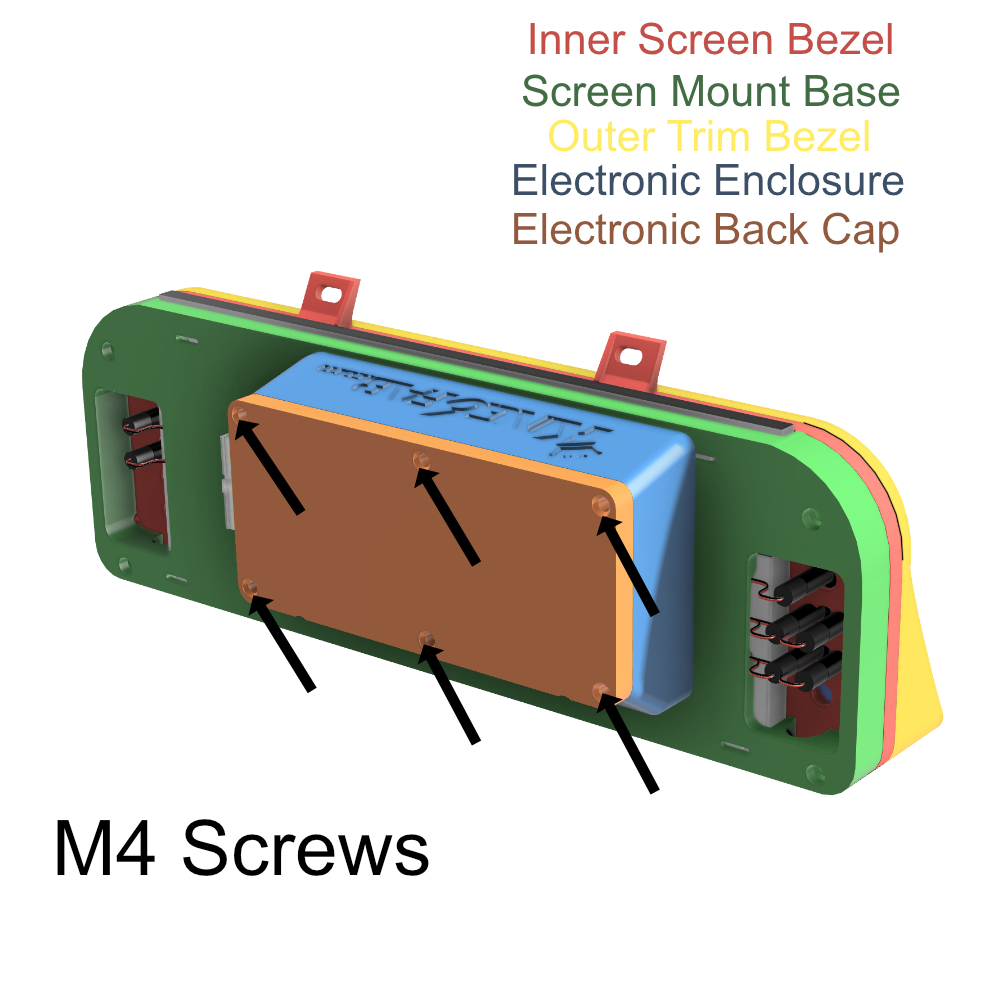
Step 1. Join the Bezel Assembly to the Screen Mount Assembly but securing them together with M4 screws in the shown locations. If you are using external indicators this is the time to start routing the pigtails behind the screen and thru to the electronic box.
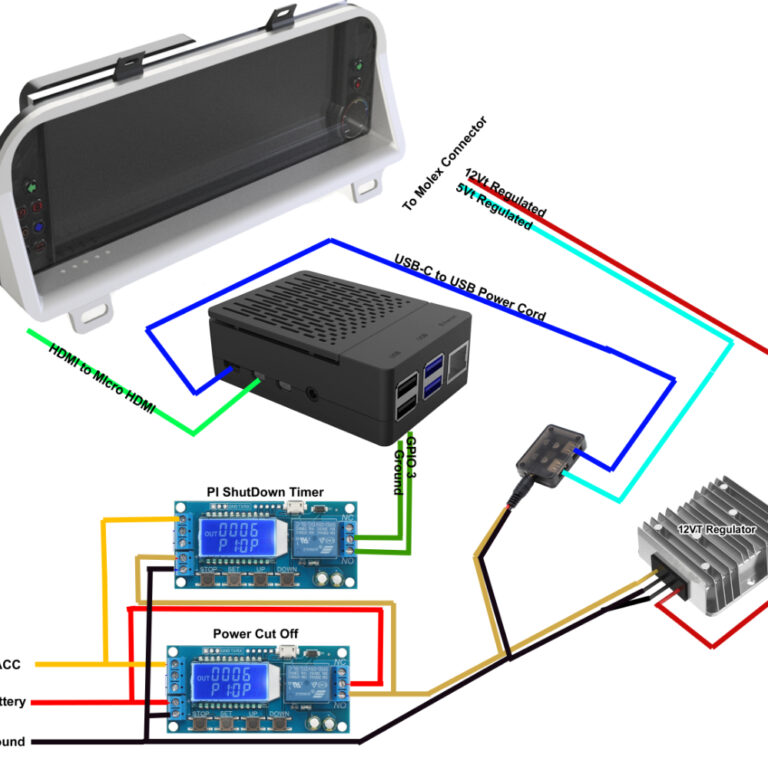
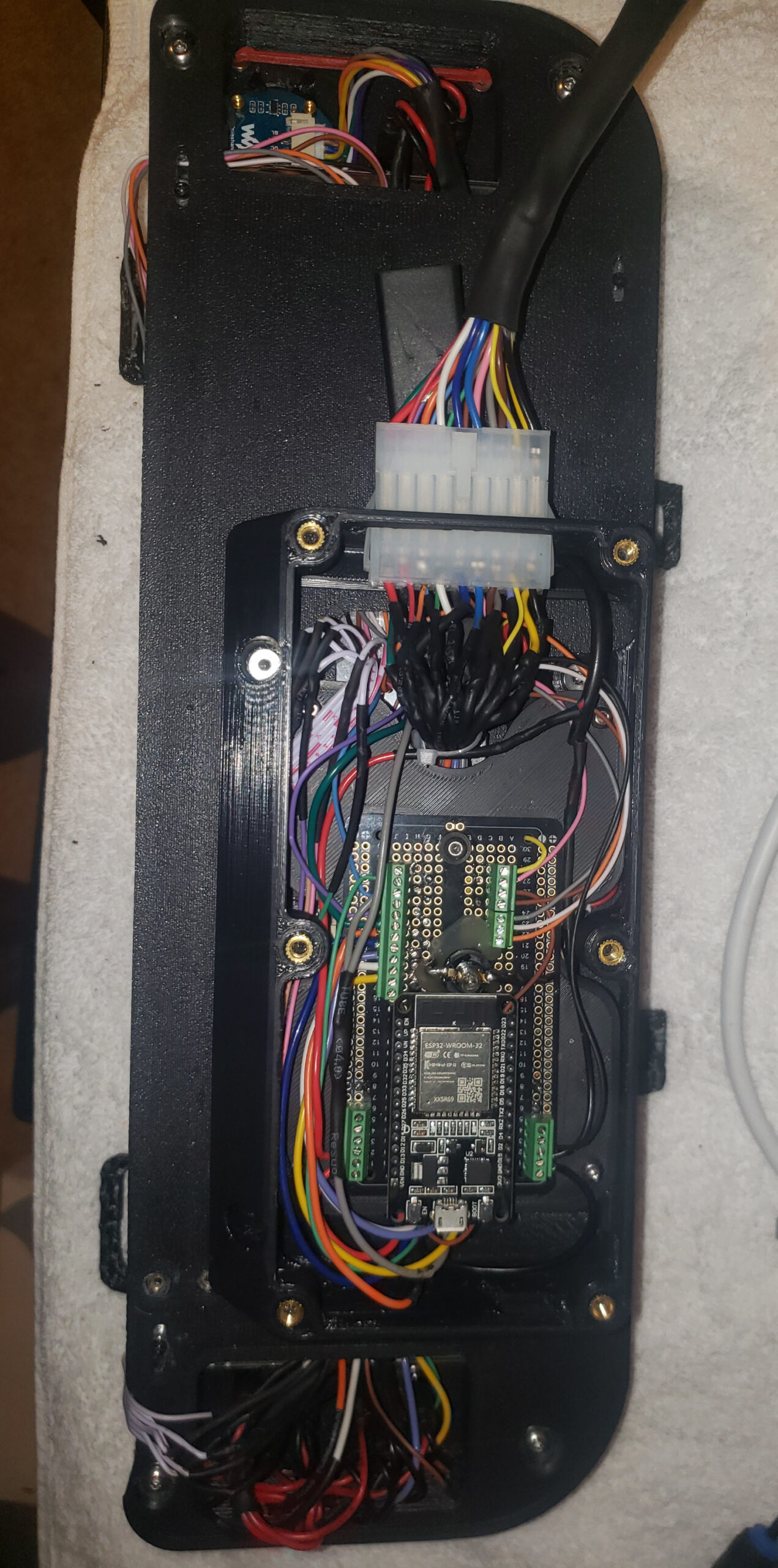
Step 2. Complete the wiring, if you are using LED indicators use the included wiring diagrams for indicators. If you are using screen only this is a simple task and you can use our included wiring reference. You will also now attach the push button keypad to its designated location on under the outer bezel.
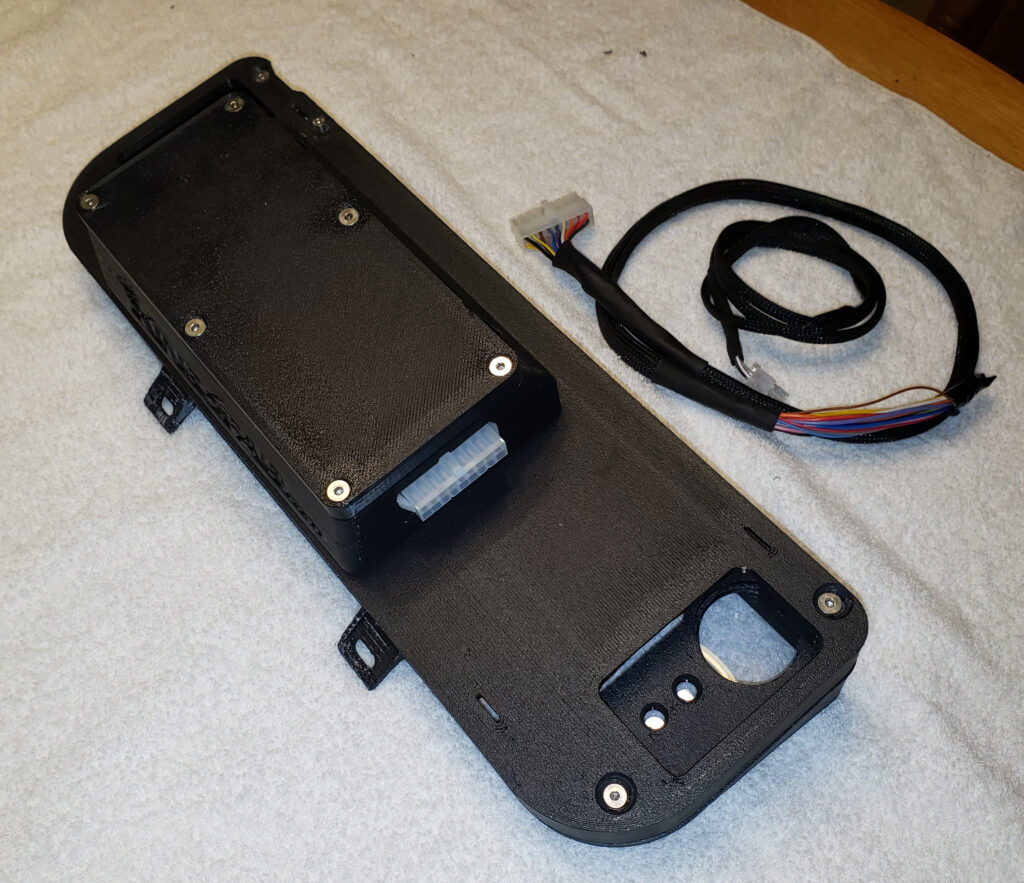
Once wiring is finished, secure the electronics enclosure with the back cap.
How useful was this post?
Click on a star to rate it!
Average rating 0 / 5. Vote count: 0
No votes so far! Be the first to rate this post.
We are sorry that this post was not useful for you!
Let us improve this post!
Tell us how we can improve this post?